Clear Cache
Sometimes content doesn't download cleanly. Clearing the cache deletes anything broken so SignPresenter can re-download it fresh. This guide covers both the Fire Stick app cache and your browser cache.
Don't clear the Fire Stick cache while you're trying to run offline — that deletes everything you've cached. See Running offline for the offline workflow.
Clear the cache on a Fire Stick
Clear Cache is built right into the SignPresenter app menu — no need to dig through the Fire Stick settings anymore.
-
While SignPresenter is running, press Back on the remote to open the app menu.
-
Select Clear Cache in the right-hand menu.
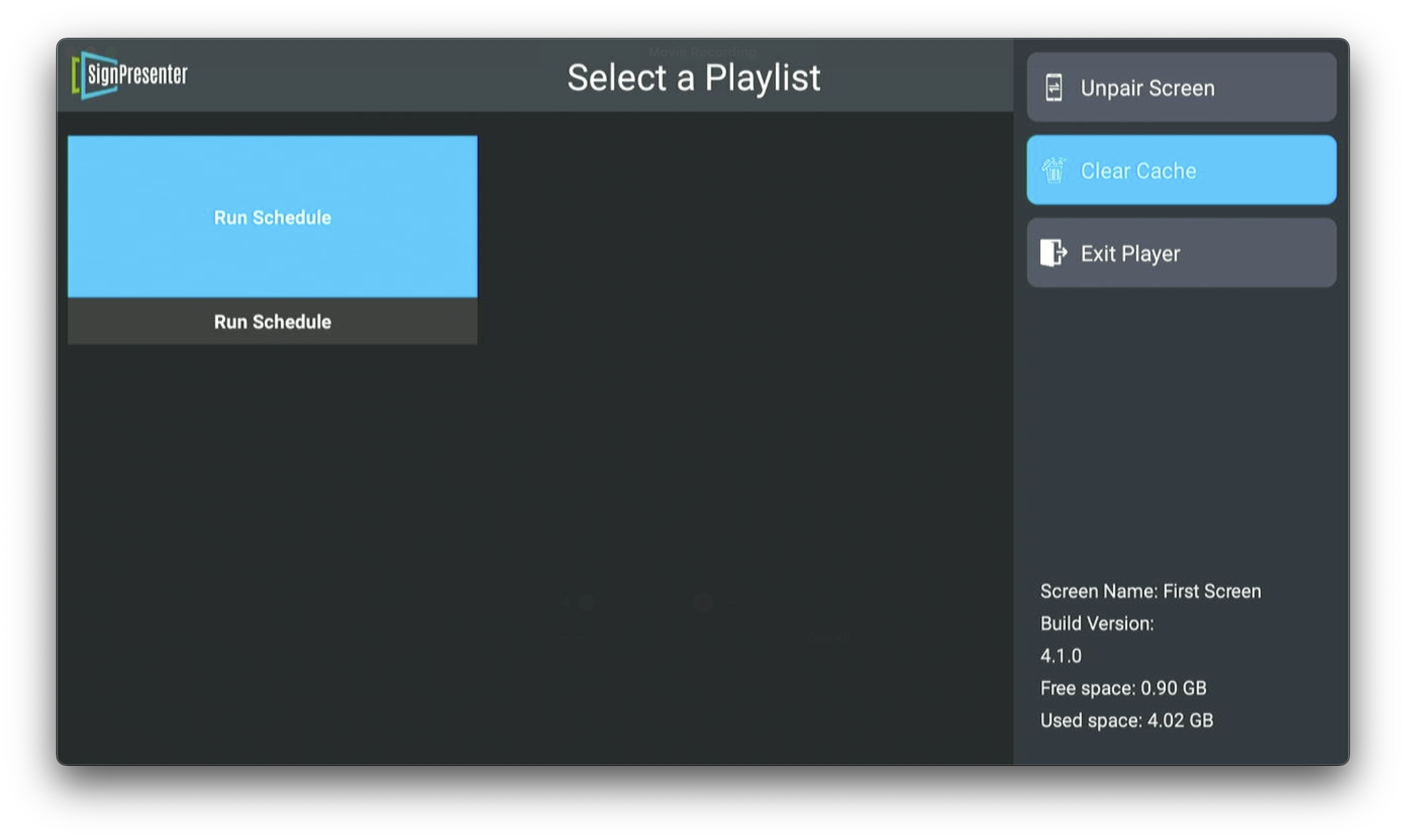
-
Select your playlist (or Run Schedule) to start playing again.
SignPresenter will re-download all your content. This same menu also shows the screen name, app version, and free/used storage space — handy if support asks for them.
If you don't see the menu, you're on an older build. Update the app, or clear the cache the old way: press Home, then go to Settings → Applications → Manage Installed Applications → Sign Presenter → Clear cache, then relaunch the app.
Clear the cache in Google Chrome
-
Click Chrome in the macOS menu bar (or the three-dot menu on Windows).

-
Click Clear Browsing Data.

-
Set the time range to All Time and click Clear Data.

Related
- Running SignPresenter offline — when NOT to clear the cache
- Stuck on "Loading Instructions…" — a different first-line fix