Initial Setup Walkthrough
Set up your first screen in three simple steps. Watch the quick setup video below, or follow the written instructions.
Step 1: Create Your First Message
A message is any piece of content displayed on your screen. Let's start with a simple image. Watch the detailed tutorial →
- Click on the Messages tab and choose your screen size (most cases: Horizontal)
- Select the Simple Image template
- Fill in the details:
- Category — A folder name to organize your messages
- Name — A descriptive name
- Duration — How long the message should display
- Upload your image:
- Click the black box that says Upload Your Image
- Click the Upload button in the top right corner
- Choose your image and click Open
- Adjust the crop if needed, then click Update
- Click Save
If your message appears in the category folder on the left, your progress has been saved.
Step 2: Create a Playlist
A playlist is a collection of messages that play in sequence. A default "Custom Playlist" with a weather message is already created for you. Watch the detailed tutorial →
- Click on the Playlists tab and select Horizontal
- Open your Custom Playlist (or create a new one)
- Under Available Content, select your category folder
- Click on your message to add it to the playlist
- Add more messages by clicking them
- Arrange messages by dragging them up or down
- Remove messages by clicking the trash can icon
- Click Save
Your playlist is now ready to display on your screen.
Step 3: Connect Your Screen
Choose your device
The easiest option for most users is the Fire TV Stick HD ($24.99). You can also use any Android device running 10.0 or newer.
Install the SignPresenter app
Option 1: Install from your device
- Plug your device into your TV and complete initial setup (WiFi, account login, software updates)
- Click the Search icon and type "Sign Presenter"
- Download and install the app
Option 2: Install from your browser
- Visit the app page for your device:
- Select your device and click Deliver
- The app will appear on your device in a few minutes
Pair your device
- Open the SignPresenter app on your TV — you'll see a 4-digit pairing code
- In your SignPresenter account, go to Step 3: Screens
- Select First Screen from the left sidebar
- Scroll down and make sure your playlist is selected under Playlist
- Click Save, then click the Pair TV button at the top
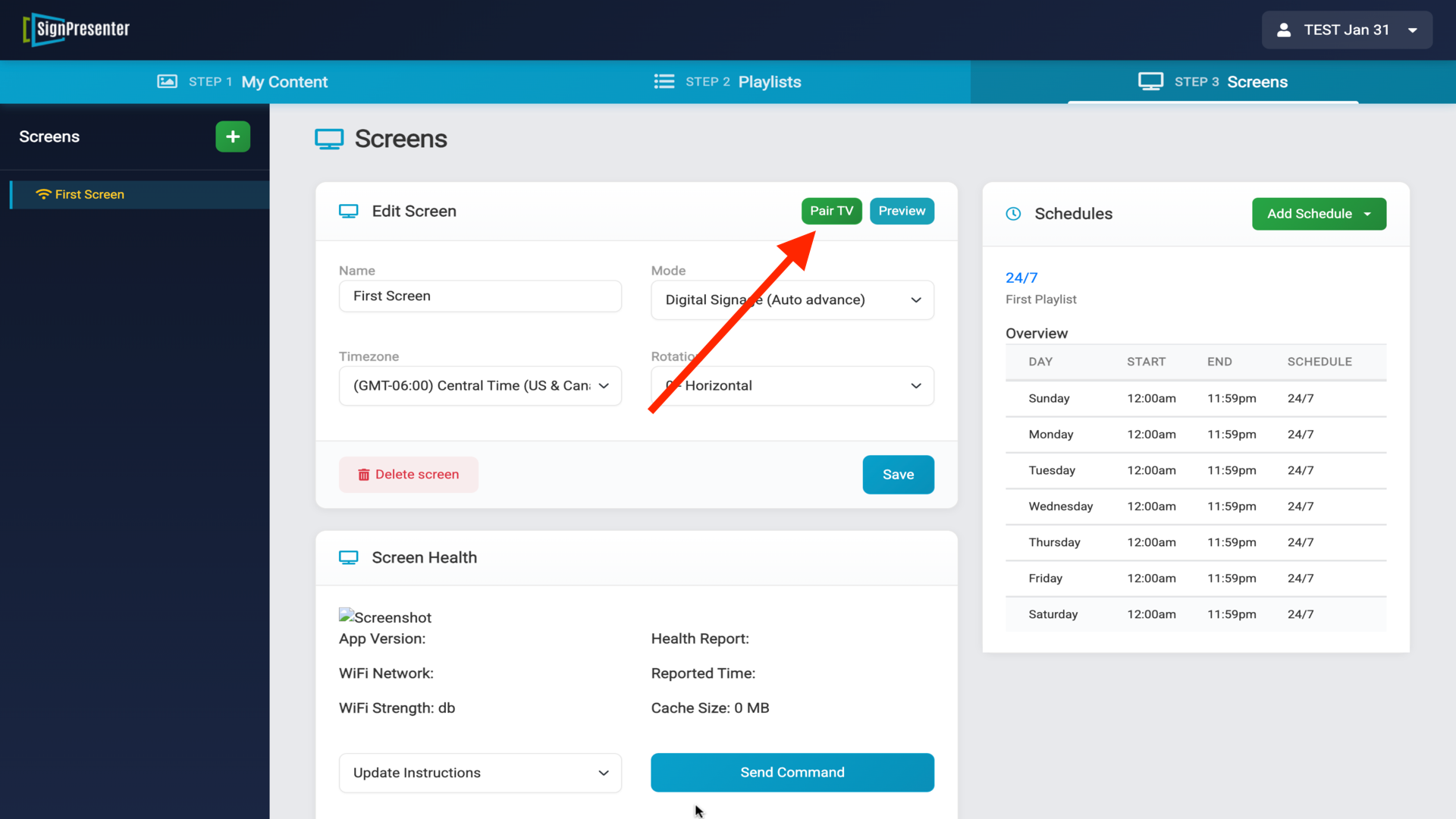
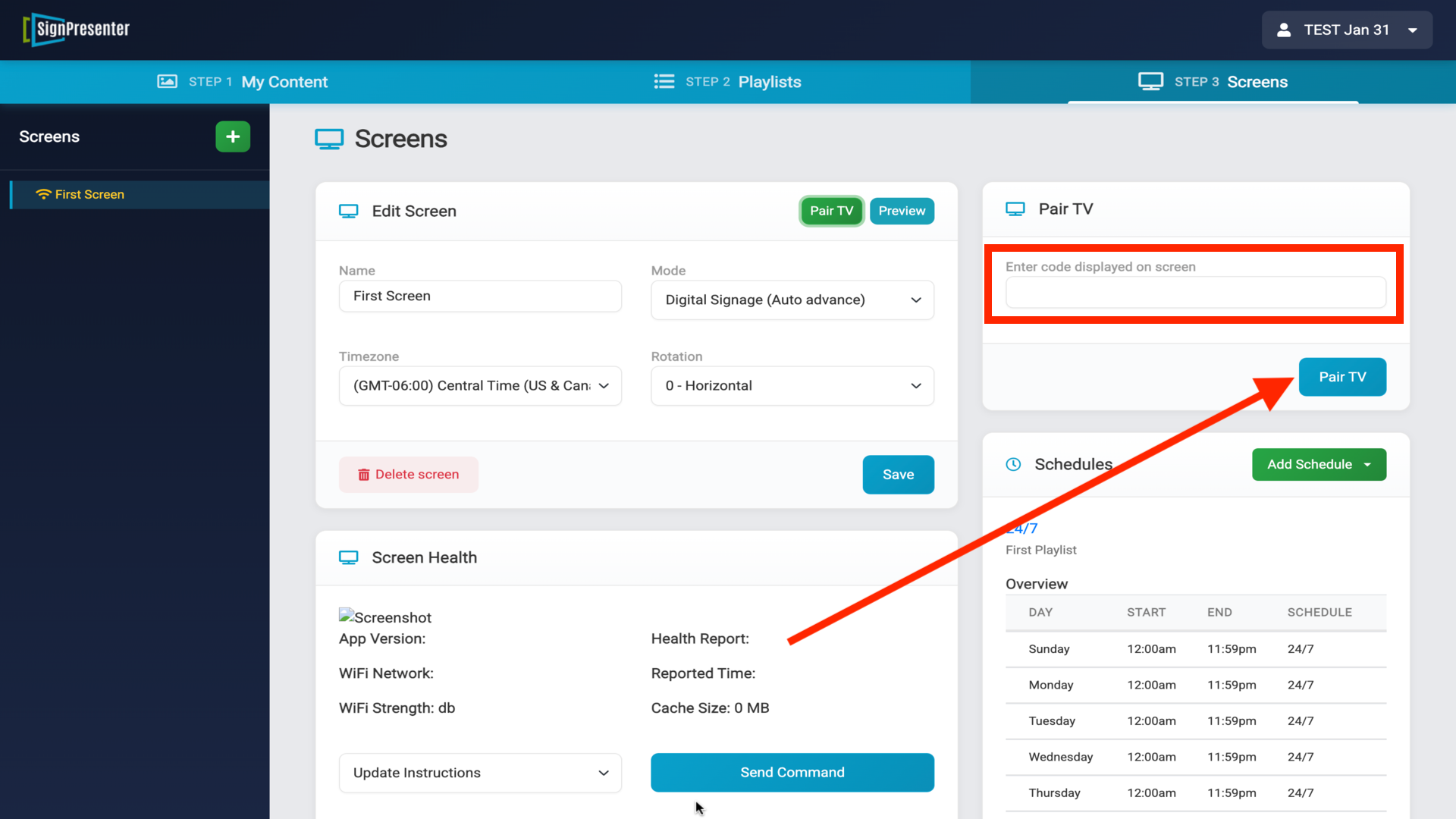
- Enter the 4-digit code displayed on your TV
- Click Pair TV
- On your device, select Run Schedule
Congratulations — you've connected your screen and your content is now playing.
Need help?
- 📅 Schedule a 15-minute screen-share demo
- 📞 Call or text 918-994-2638
- ✉️ Email [email protected]