Connect Canva to SignPresenter
SignPresenter pulls designs straight out of your Canva account — no exporting, no re-uploading. Connect once, then every Canva design is available as a message.
Before you start
- Canva works with both horizontal (16:9) and vertical (9:16) screens.
- Canva pulls in both images and videos — designs with video or animation come through as video.
- Start your Canva designs at at least 1920 × 1080 pixels (or 1080 × 1920 for vertical) so they look sharp on TV.

Step 1 — Go to My Content
Click Step 1: My Content at the top of the screen, then click the green + button to create a new message.
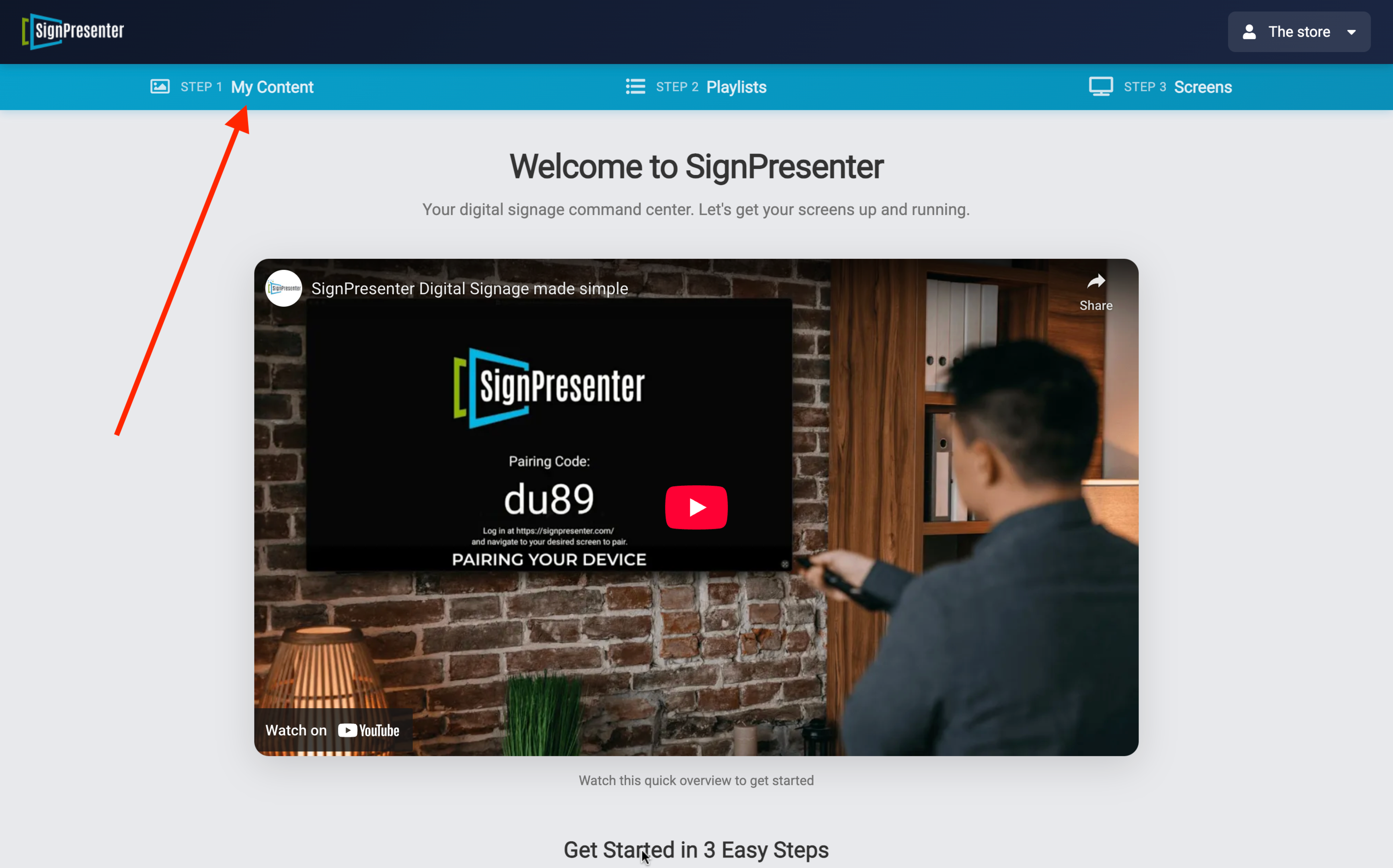
Step 2 — Select your screen layout
Choose Horizontal 16:9 or Vertical 9:16, whichever matches your screen.
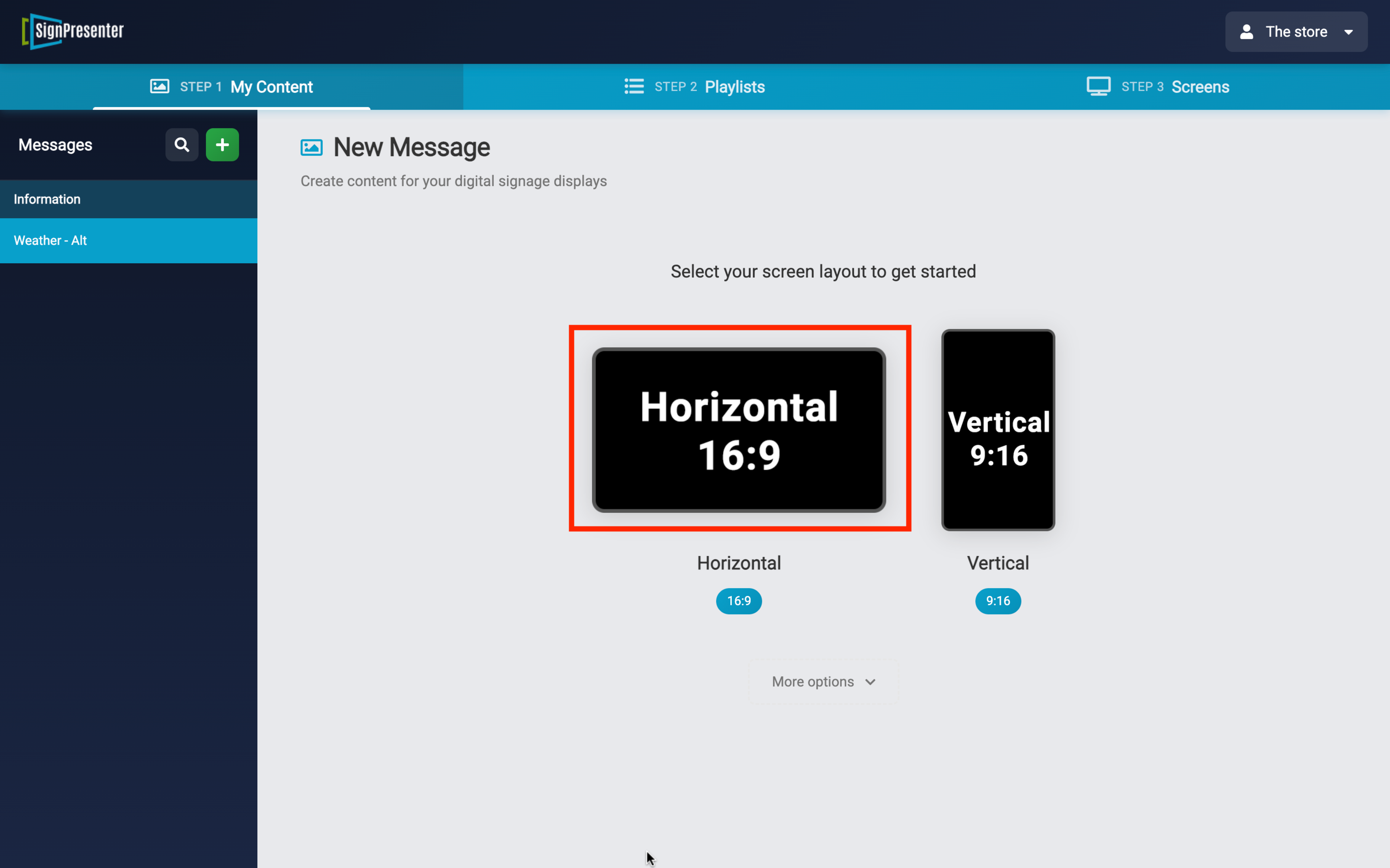
Step 3 — Select the Canva template
Click the Canva option in the Popular Message Templates section.
Step 4 — Select Canva Design
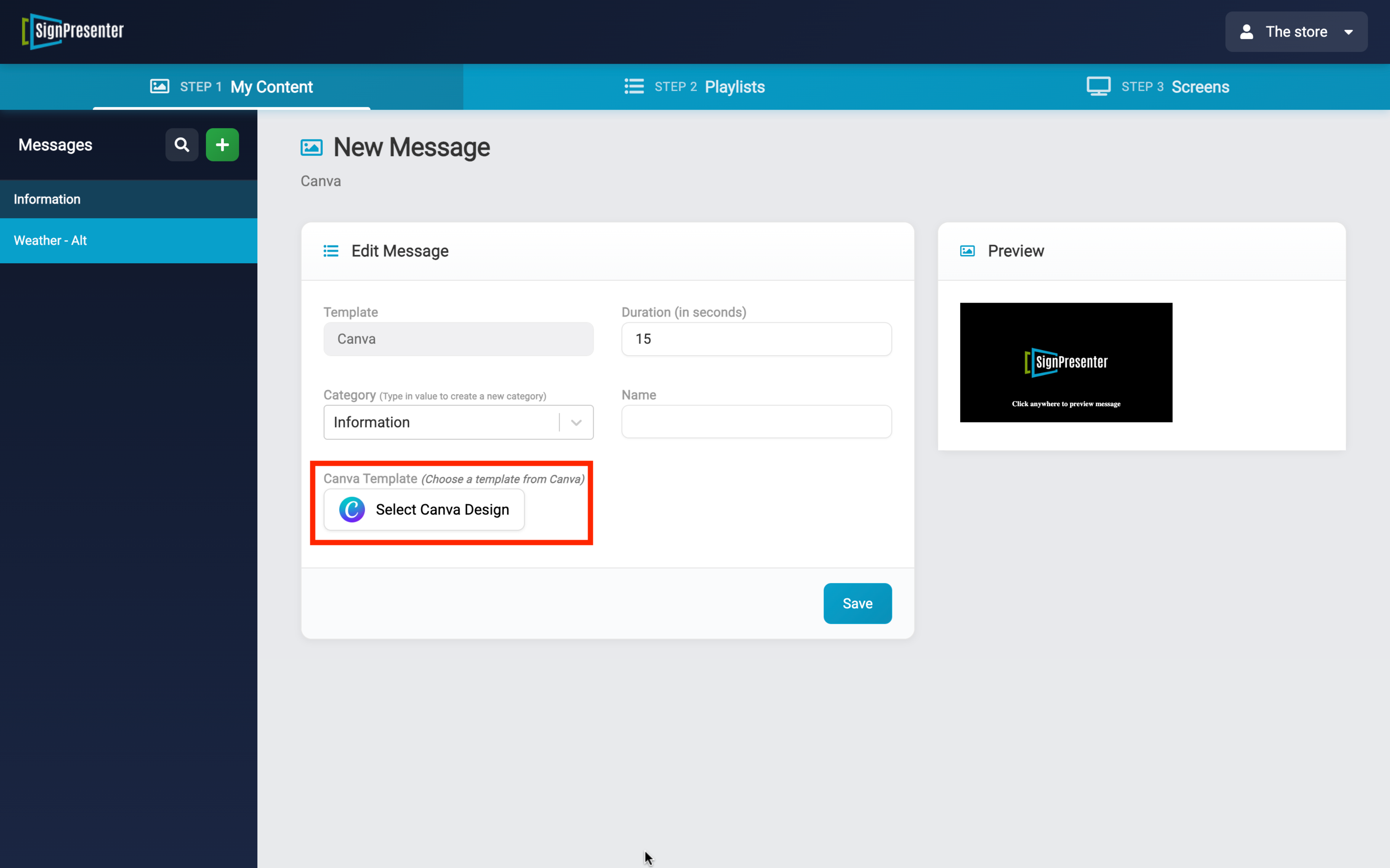
Click the Select Canva Design button to open the Canva connection screen.
Step 5 — Connect your Canva account
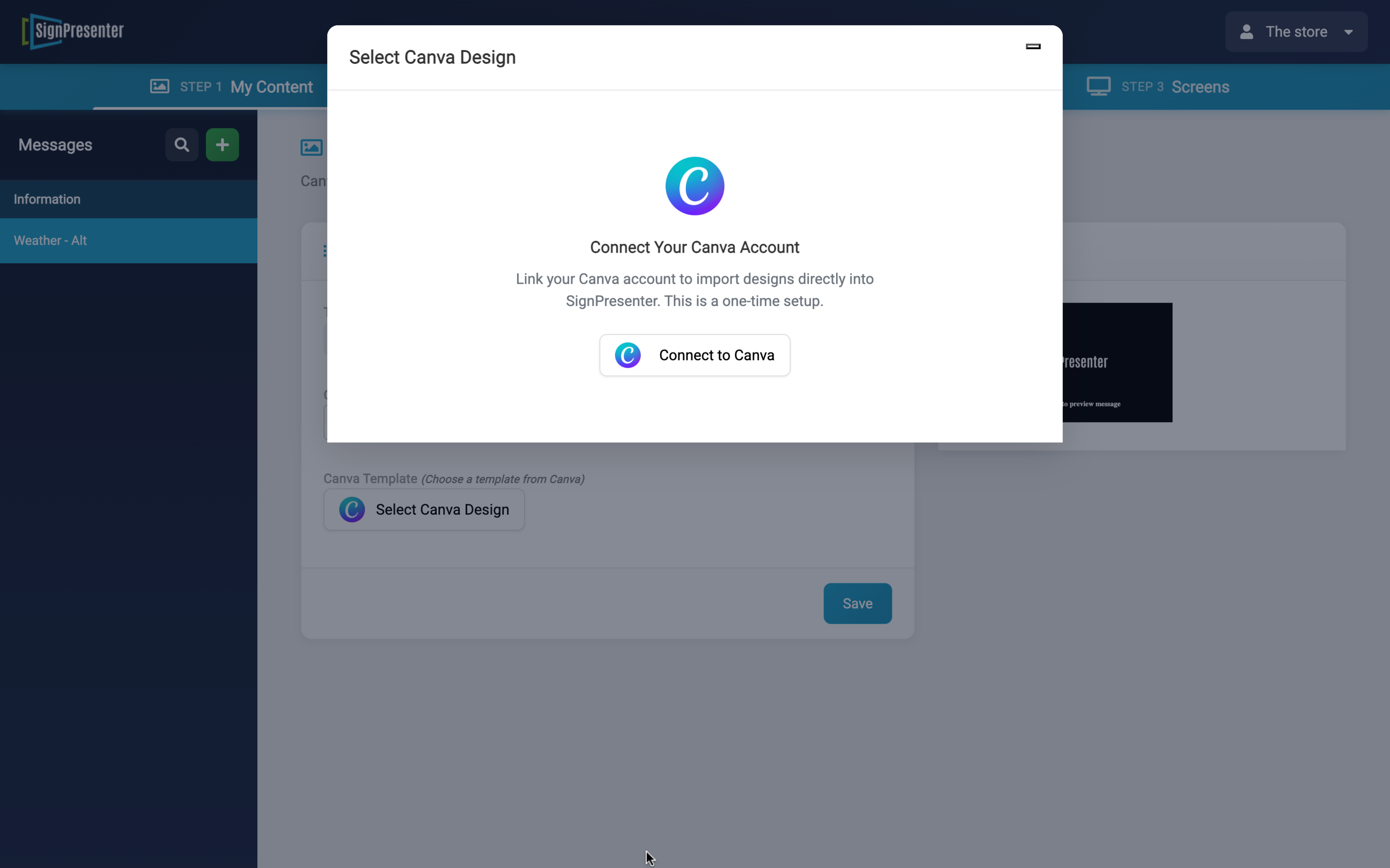
If this is your first time, you'll see a Connect Your Canva Account prompt. Click Connect to Canva — this is a one-time setup. After connecting, you can browse and select any design from your Canva library.
Give the message a Name, choose a Category, set the Duration, and click Save.
You're done
Your Canva design is now available to add to any playlist.
Updated a design in Canva? Open the message in SignPresenter, click Select Canva Design, and pick the design again — the latest version comes right in. No exporting or re-uploading needed.