
Connect Your Canva Account to SignPresenter
SignPresenter lets you pull designs directly from your Canva account and display them on your screens. It is simple to connect to any Canva account and takes just a few clicks.
Note: Canva integration currently supports horizontal (16:9) screens only. Vertical support is coming soon. Canva can only pull in images at this time.
Best Practice: Start your Canva designs at a minimum of 1920 x 1080 pixels so they look sharp on your screens.
×
![]()

Step 1 — Go to My Content
Click on Step 1: My Content at the top of the screen, then click the green + button to create a new message.
 Click image to enlarge
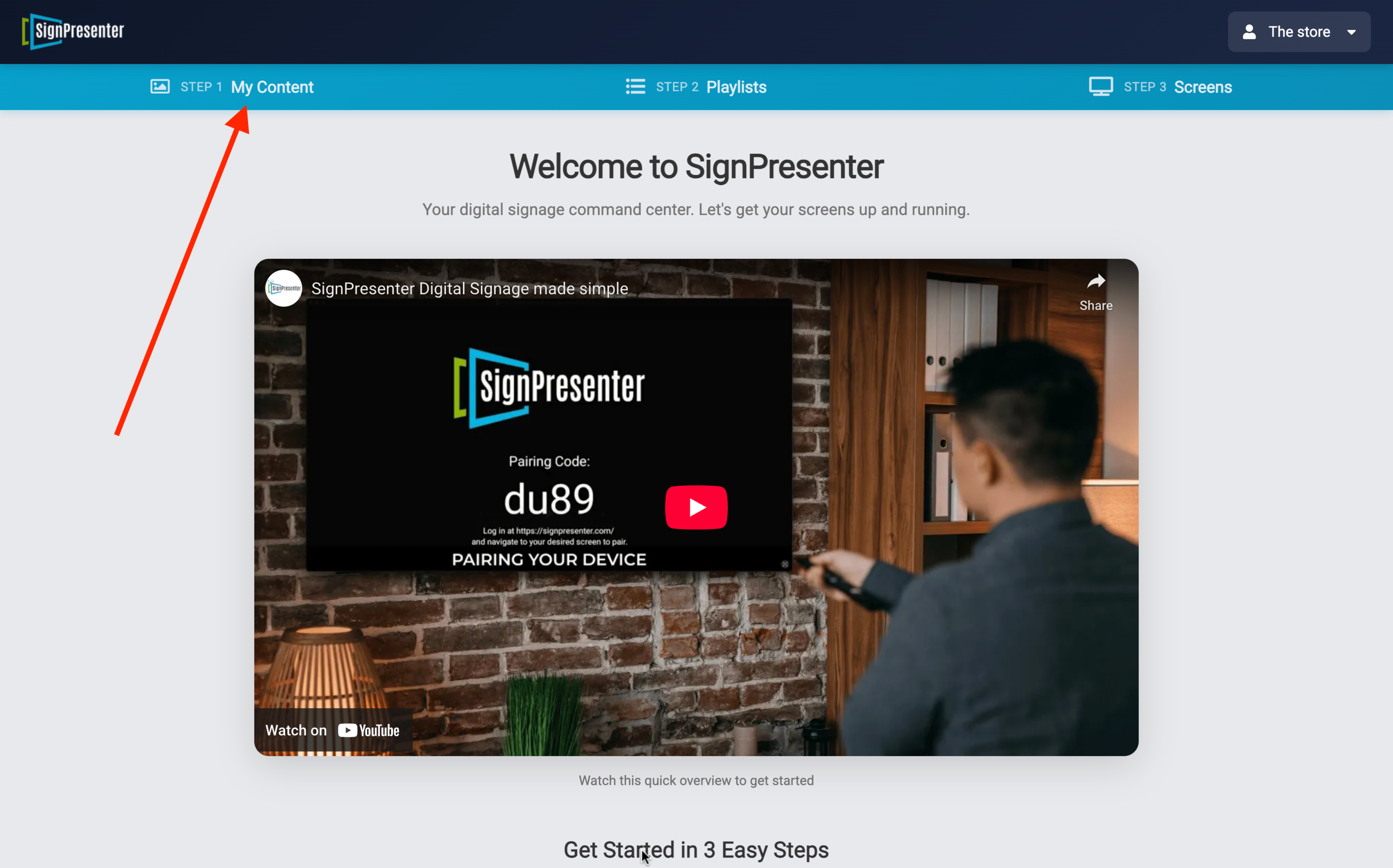
Step 2 — Select the Horizontal layout
Choose Horizontal 16:9 for your screen layout.
 Click image to enlarge
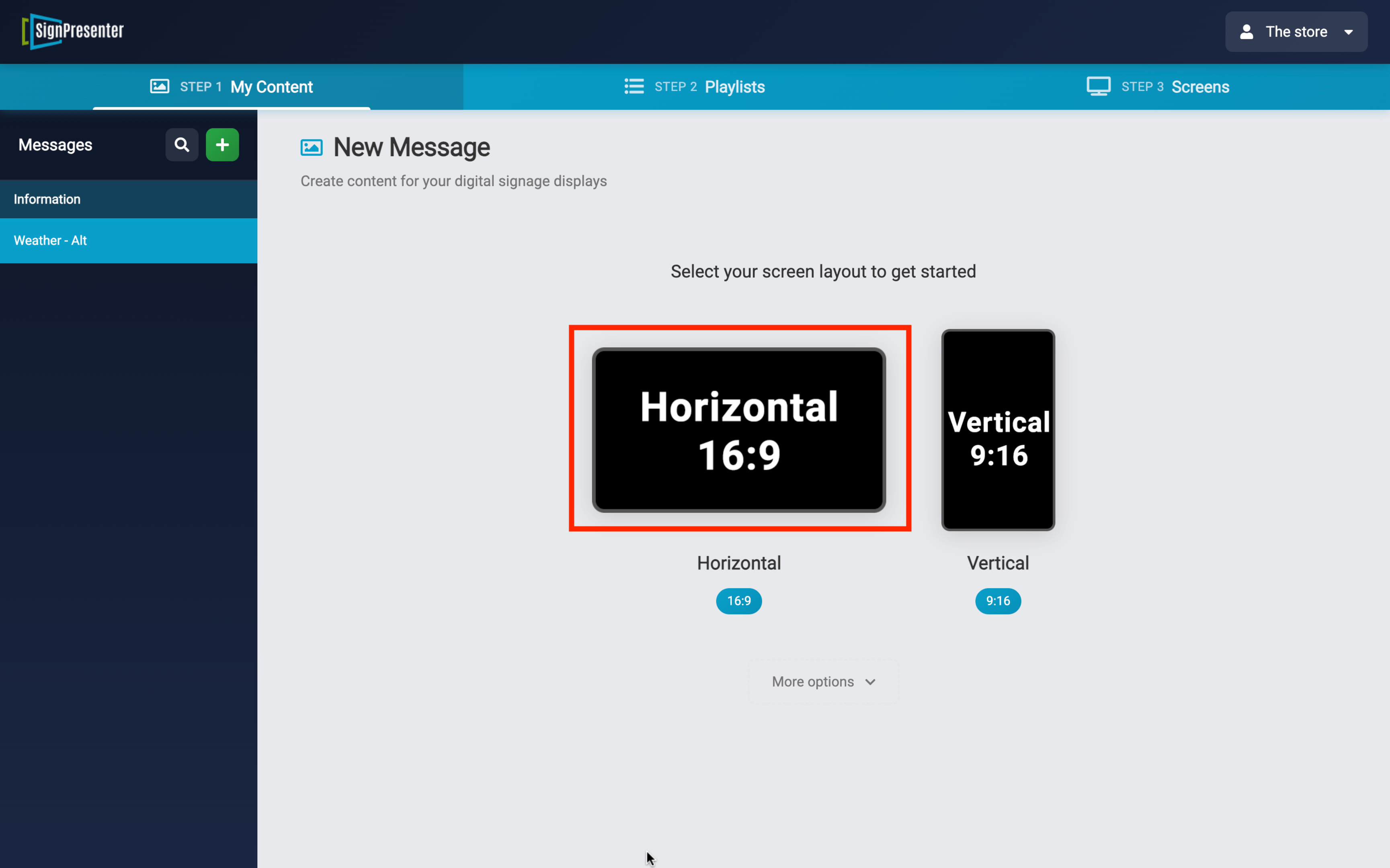
Step 3 — Open All Message Templates
Click All Message Templates to see the full list of content types.
 Click image to enlarge
Step 4 — Select the Canva template
Scroll down and click the Canva option in the template list.
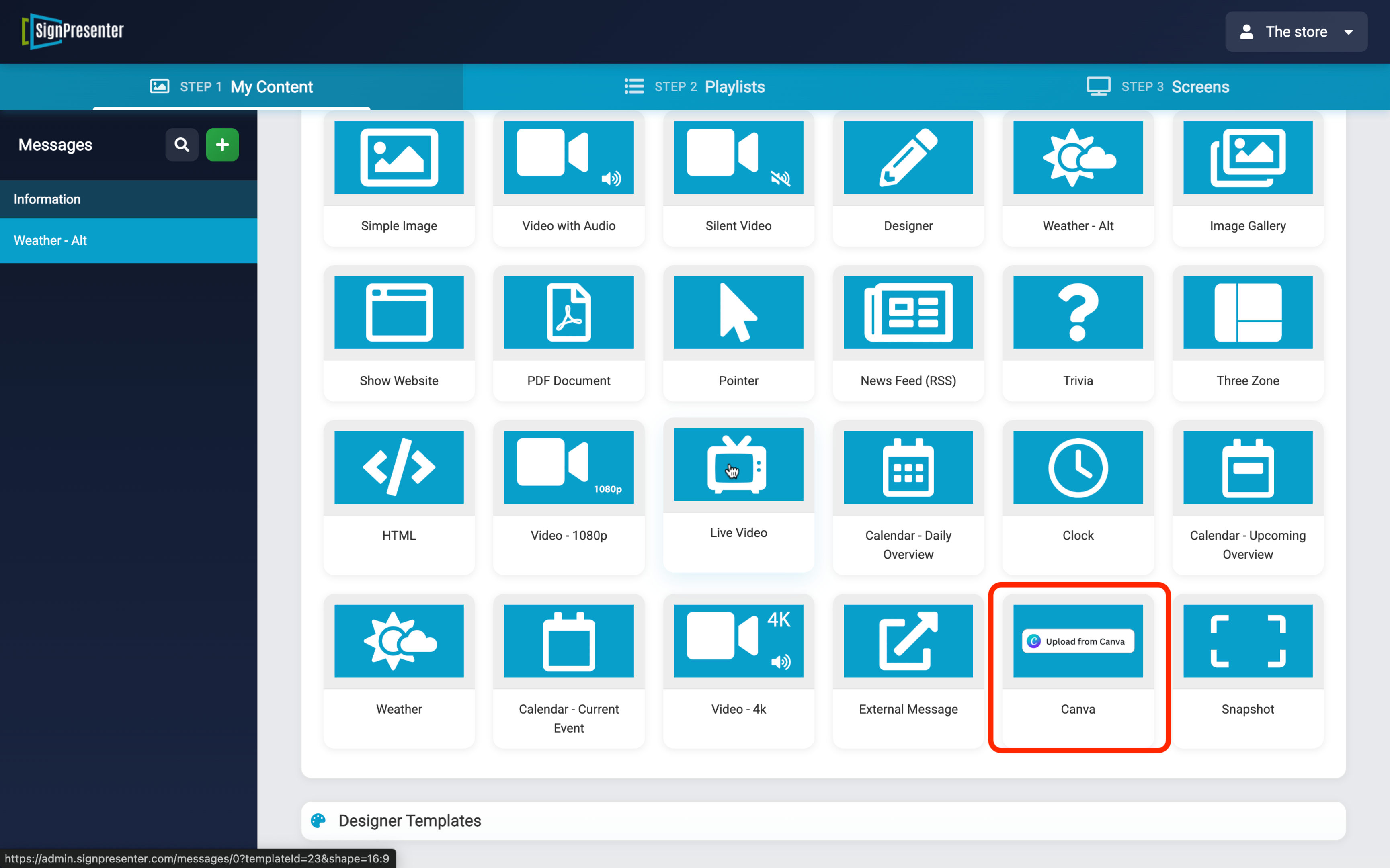 Click image to enlarge
Step 5 — Select Canva Design
Click the Select Canva Design button to open the Canva connection screen.
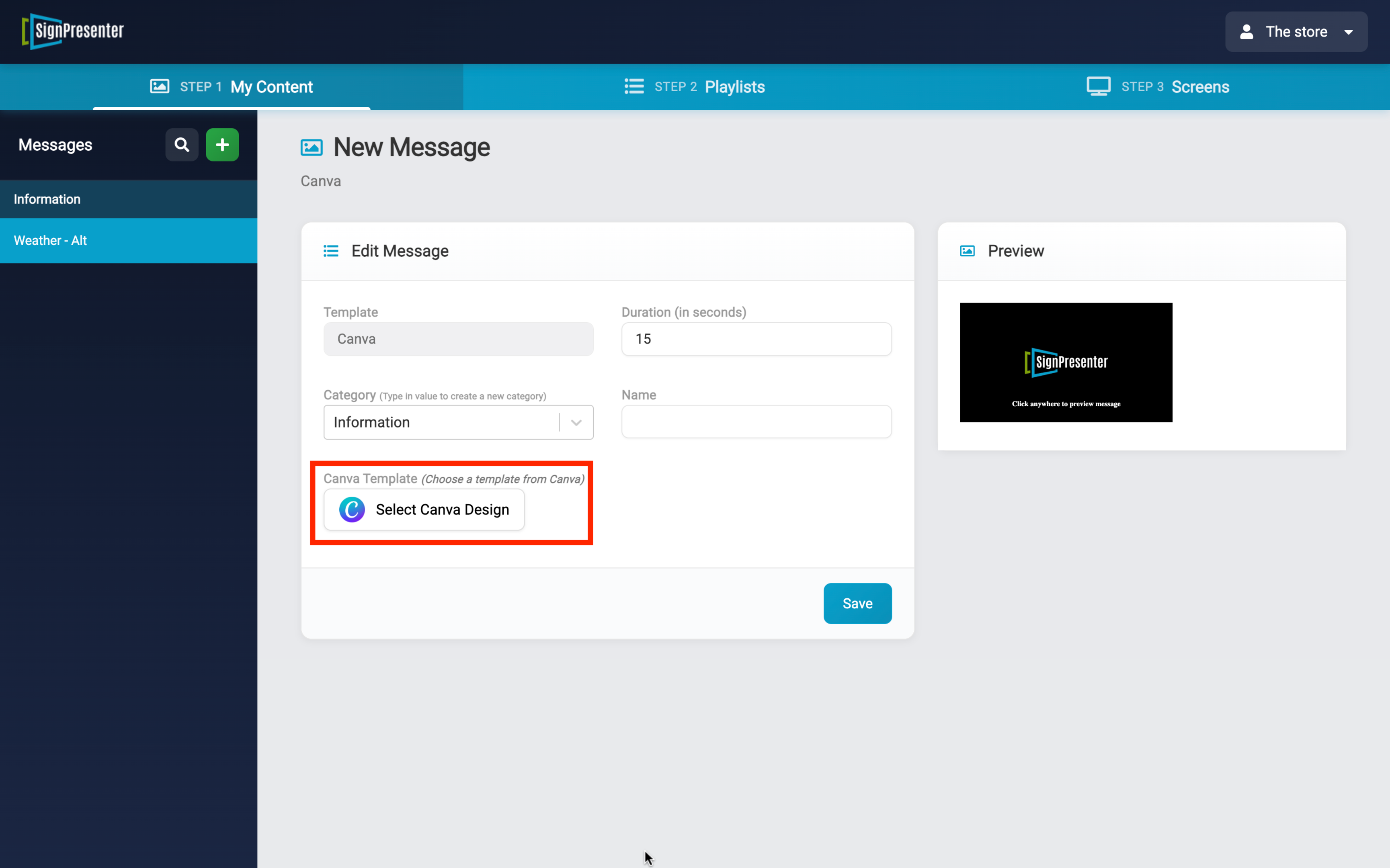 Click image to enlarge
Step 6 — Connect your Canva account
If this is your first time, you will see a Connect Your Canva Account prompt. Click Connect to Canva — this is a one-time setup. After connecting, you can browse and select any design from your Canva library.
Give the message a Name, choose a Category, set the Duration, and click Save.
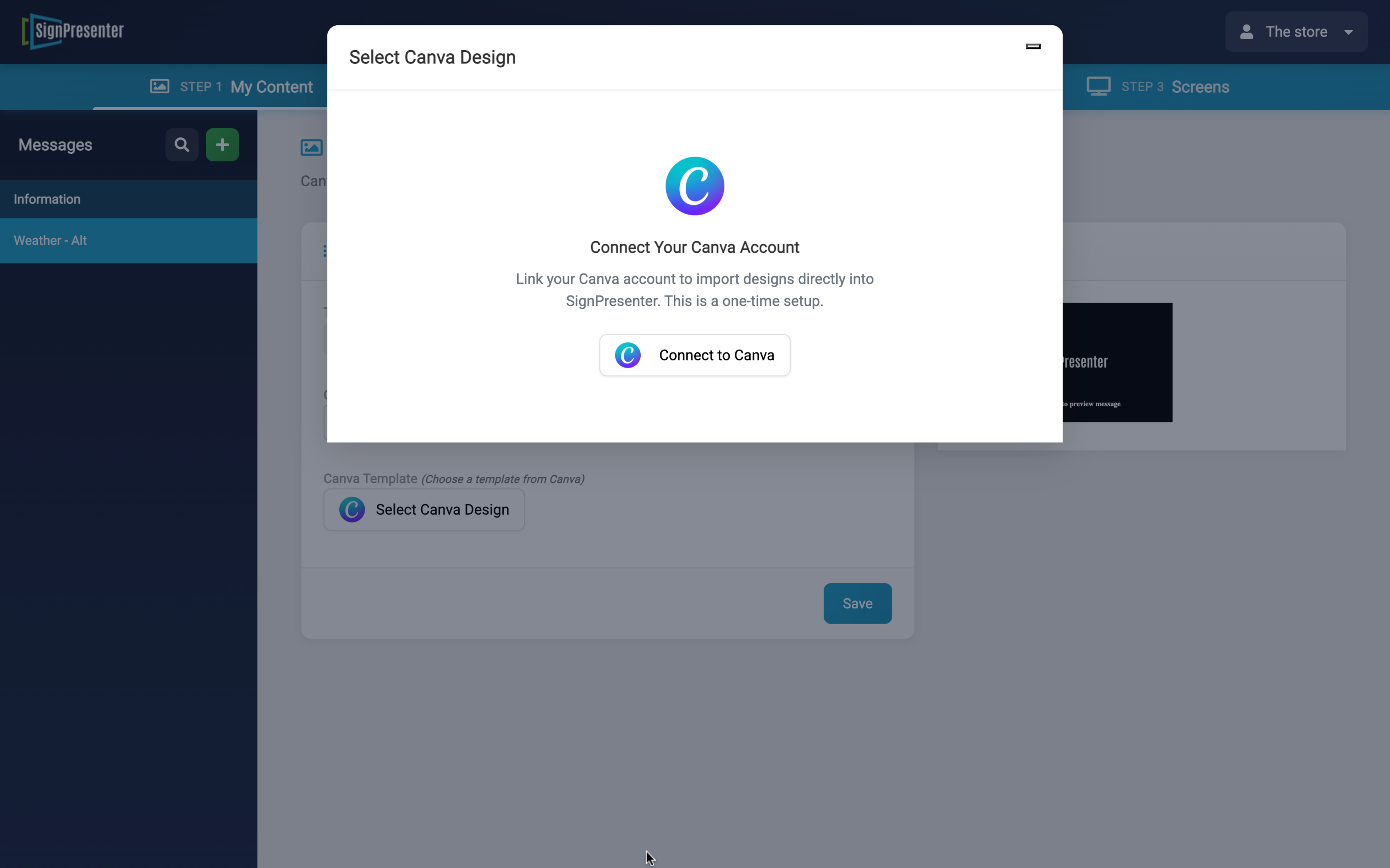 Click image to enlarge
That’s it! Your Canva design will now be available to add to any playlist on your horizontal screens.